Images help break up text, support your message, and make pages more engaging. WordPress makes it easy to upload images and add them to your content, whether you’re creating a blog post, landing page, or website page.
From simple blog post images to more advanced page layouts, WordPress offers several tools for adding and displaying images throughout your site.
Uploading Images to WordPress
There are several ways to upload images in WordPress.
Drag and Drop
One of the quickest methods is to drag an image file from your computer directly into the WordPress editor. WordPress will automatically upload the image and create an Image block for you.
You can also drag files directly into the Media Library when managing your site’s images.
Upload Through an Image Block
- Click the + button to add a new block.
- Select Image.
- Choose Upload to select a file from your computer.
- Once uploaded, the image will be inserted into your page or post.
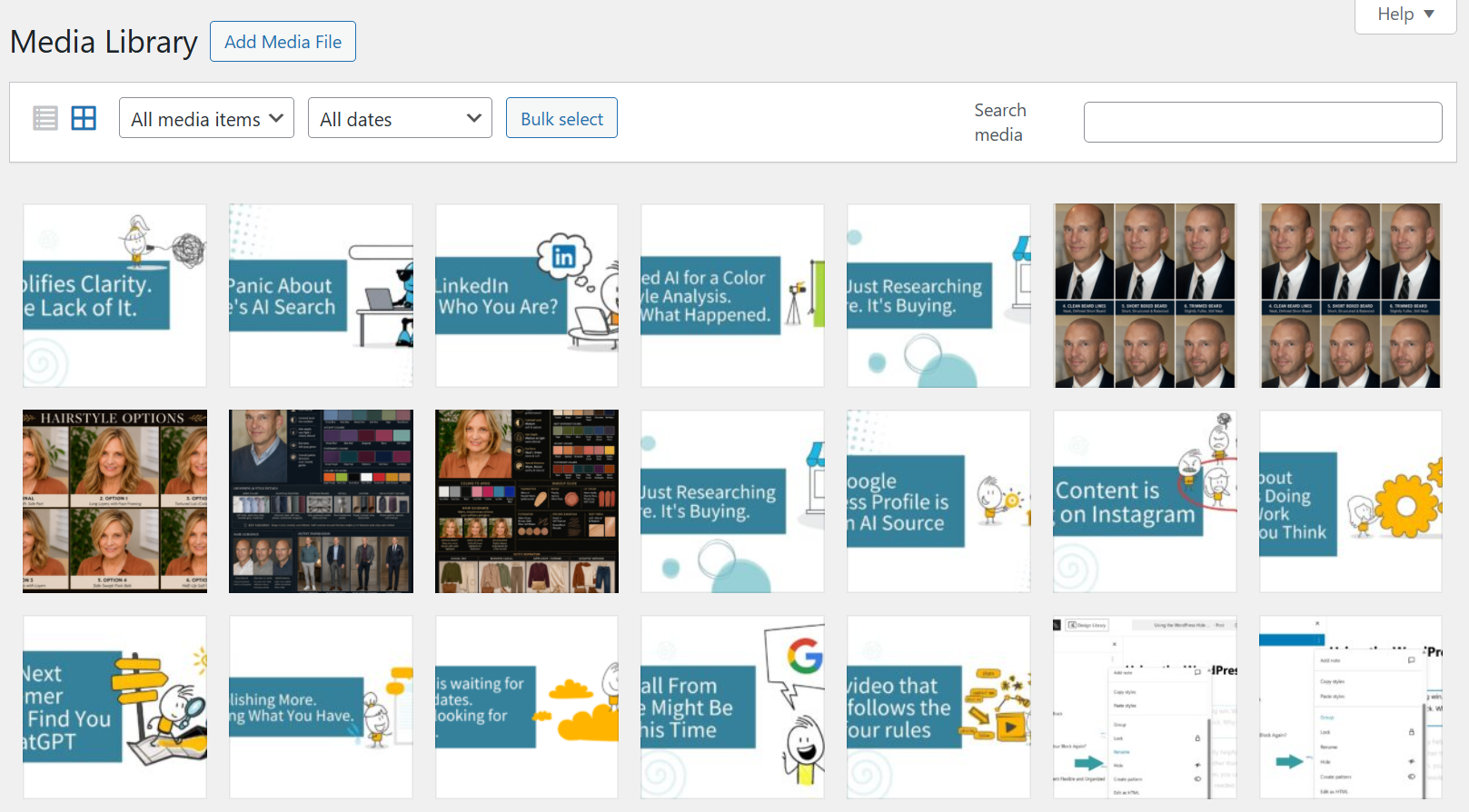
Use the Media Library
If an image has already been uploaded to your site:
- Add an Image block.
- Select Media Library.
- Choose the image you want to use.
- Click Select to insert it into your content.
Adding Images Alongside Text
In some cases, you may want text to appear next to an image rather than above or below it. WordPress allows you to align images to the left or right so that surrounding text wraps around them. This can help break up long sections of content and add visual interest to a page or post.
For more control over image and text placement, consider using the Media & Text block, which is designed specifically for creating side-by-side layouts. This is useful if your picture is larger than the accompanying text for example but want to group it with only that text.
Common Image Blocks in WordPress
WordPress includes several image-related blocks. Here are three of the most commonly used.
Image Block
The Image block is the most frequently used option for adding a single image to a page or post.
With an Image block, you can:
- Upload or select an image
- Add alt text
- Add captions
- Adjust alignment and sizing
- Link the image to another page or file
Use the Image block whenever you need a standalone image within your content.
Gallery Block
The Gallery block allows you to display multiple images in a single organized layout.
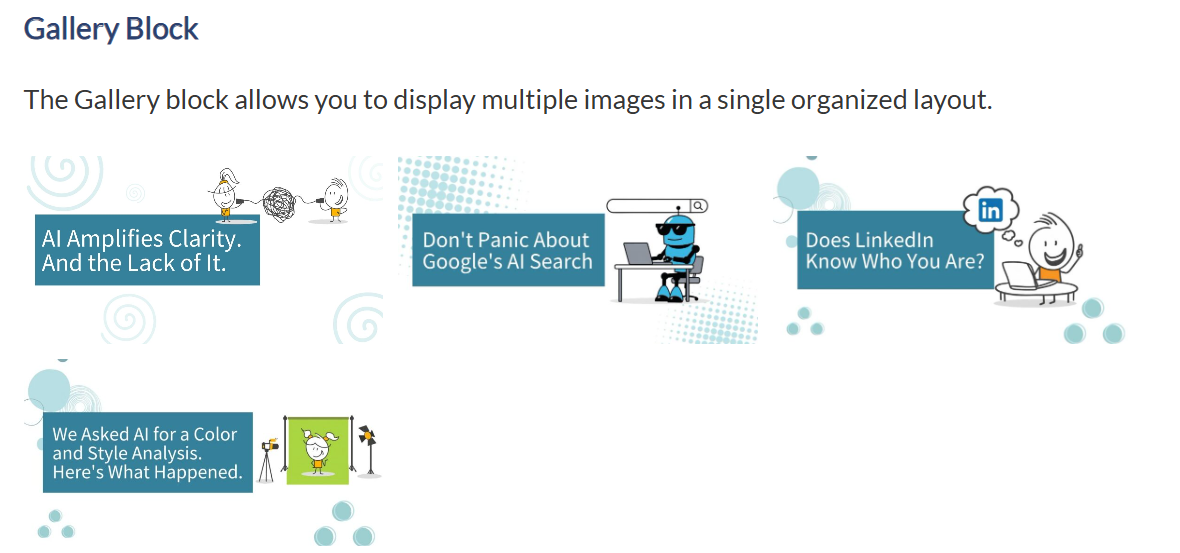
This block is useful for:
- Project portfolios
- Event photos
- Product galleries
- Before-and-after examples
Instead of adding multiple Image blocks individually, the Gallery block keeps related images together in one responsive display.
Media & Text Block
The Media & Text block combines an image and text side-by-side.
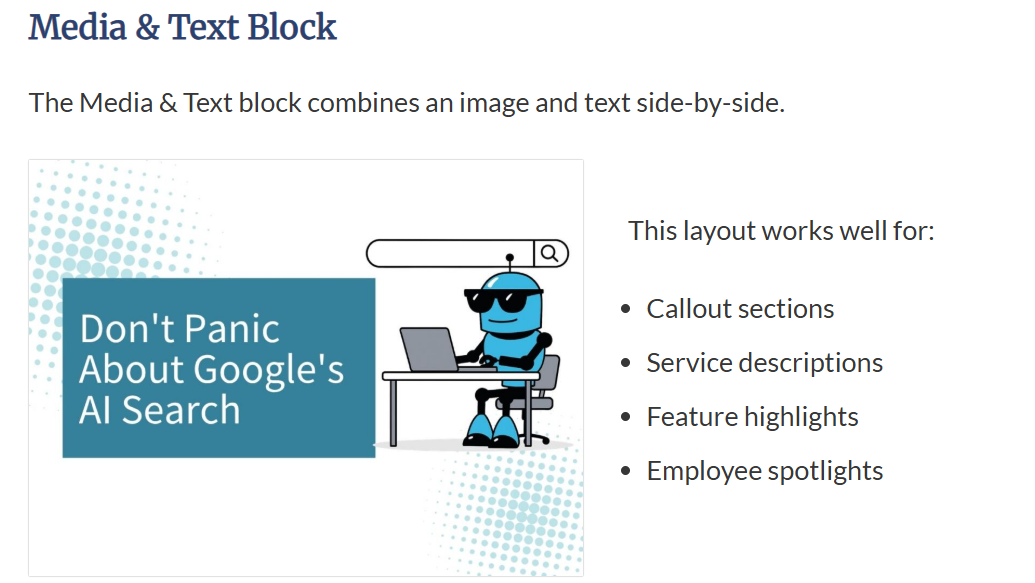
This layout works well for:
- Service descriptions
- Feature highlights
- Employee spotlights
- Callout sections
Because the image and text are paired within a single block, it’s easier to create consistent layouts throughout a page.
Want to do more with your images? Our 3 Quick Image Block Hacks blog covers a few simple techniques for creating more dynamic and visually appealing content in WordPress.
Image Best Practices
Using images effectively is about more than simply adding them to a page. Taking a few extra steps before publishing can improve accessibility, site performance, and the overall user experience.
- Use descriptive file names or titles that clearly identify the image rather than generic names like IMG_1234.jpg. That way you can search your media library for specific images.
- Add alt text to help screen readers interpret the image and provide search engines with additional context.
- Resize large images before uploading whenever possible to help pages load faster and perform better.
- Choose images that support your content and provide value for readers rather than serving as decoration alone.
- Maintain a consistent visual style across your website to create a cohesive, professional appearance.
Following these best practices can help ensure your images look great, load efficiently, and contribute to a better experience for your website visitors. For more best practices on media use within your WordPress site, check out our blog Media Library Tips.
Whether you’re dragging and dropping files, inserting images into content, or building more advanced page layouts, WordPress provides several simple tools for working with images.