WordPress gives you plenty of flexibility when it comes to managing your website content. You can move published content back to draft, recover pages or posts from the Trash, and even restore certain items you’ve deleted.
Knowing where to find these settings can make managing your website a little easier. Here are a few common ways to change or restore content in WordPress.
Change a Published Post or Page to Draft
Sometimes you need to temporarily remove a published page or post from your website without deleting it. Changing its status back to draft lets you keep the content in WordPress while removing it from public view.
To change published content back to draft:
- Open the page or post in the WordPress editor.
- Find the status settings for the page or post.
- Change the status from Published to Draft.
- Confirm the change when prompted.
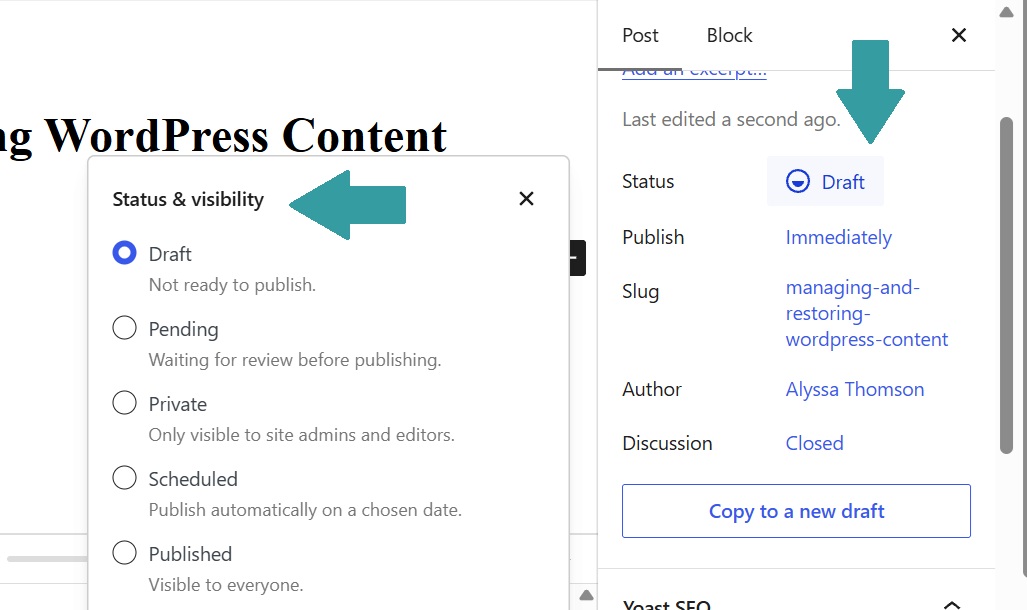
You can also change the status from the Posts or Pages screen using Quick Edit. Find the content you want to update, select Quick Edit, change the status to Draft and save your changes.

Keep in mind that taking a page or post offline doesn’t necessarily remove it from search results immediately. If the URL has already been indexed by search engines, consider whether the content should be redirected to another relevant page on your website.
Recover a Deleted Page or Post
Deleting a page or post in WordPress doesn’t usually remove it permanently right away. Instead, WordPress moves it to the Trash, giving you an opportunity to restore it.
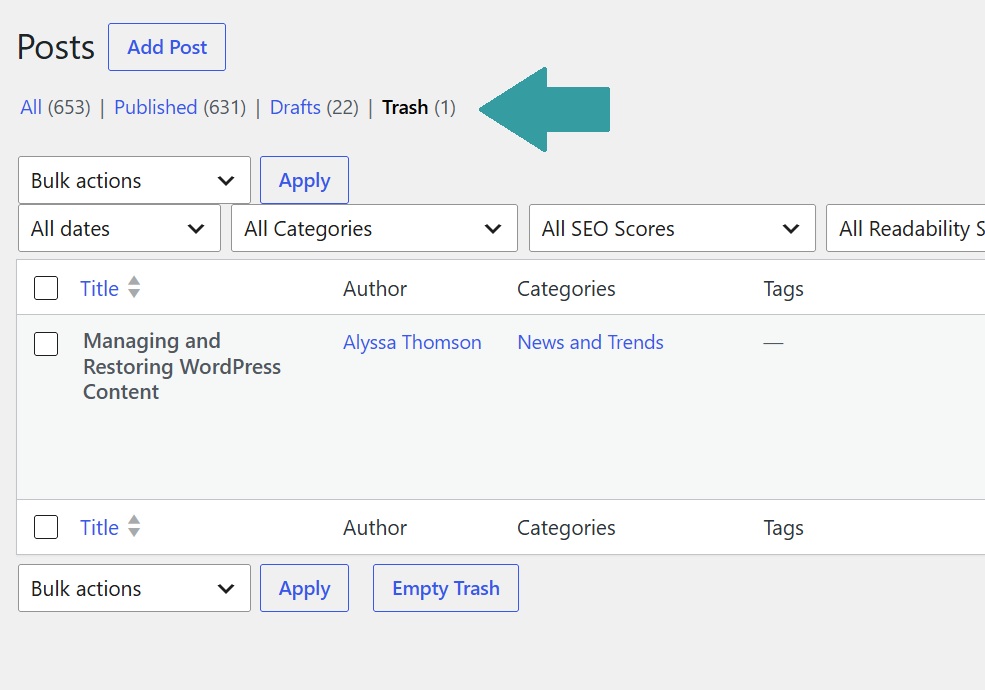
From your WordPress dashboard, go to Pages or Posts and select Trash. Find the item you want to recover, hover over it and select Restore.
The page or post will return to your content list, where you can edit or manage its status as needed.
If you don’t see the content in the Trash, it may have already been permanently deleted if it passed the thirty day mark.
Restore Other Deleted Content
Pages and posts aren’t the only things you may need to recover while working in WordPress. Depending on what you’ve deleted and how your website is configured, WordPress may provide options for restoring other content as well.
Before recreating something from scratch, check whether the item is still available in the appropriate Trash or recovery area. If it is, restoring the original can save time and help preserve the content and settings you already had in place.
Keep in mind that WordPress doesn’t treat every type of deleted content the same way. Some items can be restored easily, while others may be permanently removed once deleted.
Restore an Older Version of a Post or Page
Sometimes you don’t want to remove or recover content at all. You simply want to go back to an earlier version.
WordPress automatically saves revisions as you work on a page or post. These revisions allow you to review previous versions and restore one if needed.
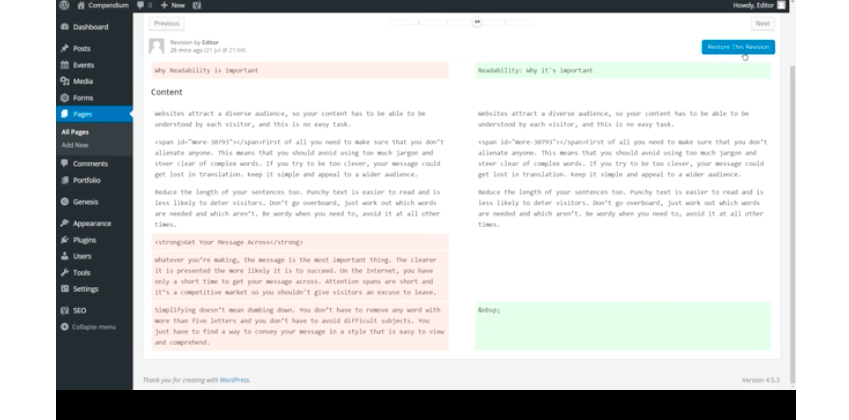
Open the page or post you want to restore and locate Revisions in the editor settings. Select the revisions option to see the versions WordPress has saved.
You can move between revisions to compare changes and find the version you want. Once you’ve found it, select Restore This Revision.
WordPress will replace the current content with the selected version. You can then review the page or post and make any additional changes before updating or publishing it.
Know Your WordPress Content Options
You don’t always have to delete content when you no longer want it visible on your website. WordPress gives you several options depending on what you want to accomplish.
Moving content back to draft is useful when you want to take something offline but keep it for later. The Trash gives you a chance to recover deleted pages and posts before they’re permanently removed. And when something does disappear, checking WordPress’s available recovery options first can save you from rebuilding it.
Understanding these settings makes it easier to manage your website content and choose the right option for each situation.