You spend a lot of time in the WordPress admin area managing pages, posts and other website content. A few simple settings can help you customize that workspace and make it easier to focus on what you use most.
From changing the look of your admin area to simplifying individual screens and adjusting your editor view, WordPress gives you several ways to personalize your experience.
Customize What You See With Screen Options
Some WordPress admin screens include a Screen Options tab that lets you control what information appears on that particular screen.
Look for Screen Options near the upper-right corner of the page. Click it to see the options available for that screen.
Depending on where you are in WordPress, you may be able to show or hide certain columns and other information. On list screens, you may also be able to change how many items, such as posts or pages, appear at once.
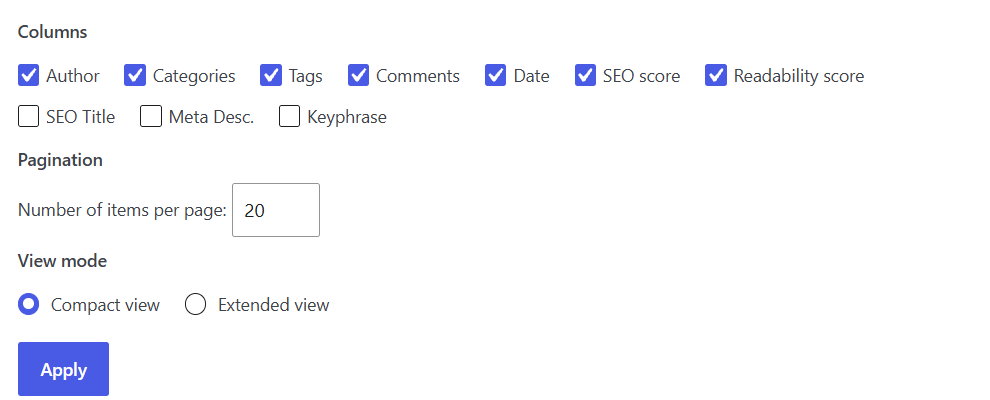
Screen Options vary depending on the admin screen you’re viewing, so it’s worth checking the tab in different areas of your dashboard.
Change Your Admin Color Scheme
Want to give your WordPress admin area a different look? WordPress includes several built-in admin color schemes.
Go to Users > Profile in your WordPress dashboard and find Admin Color Scheme. Select the color scheme you prefer, then save your changes.
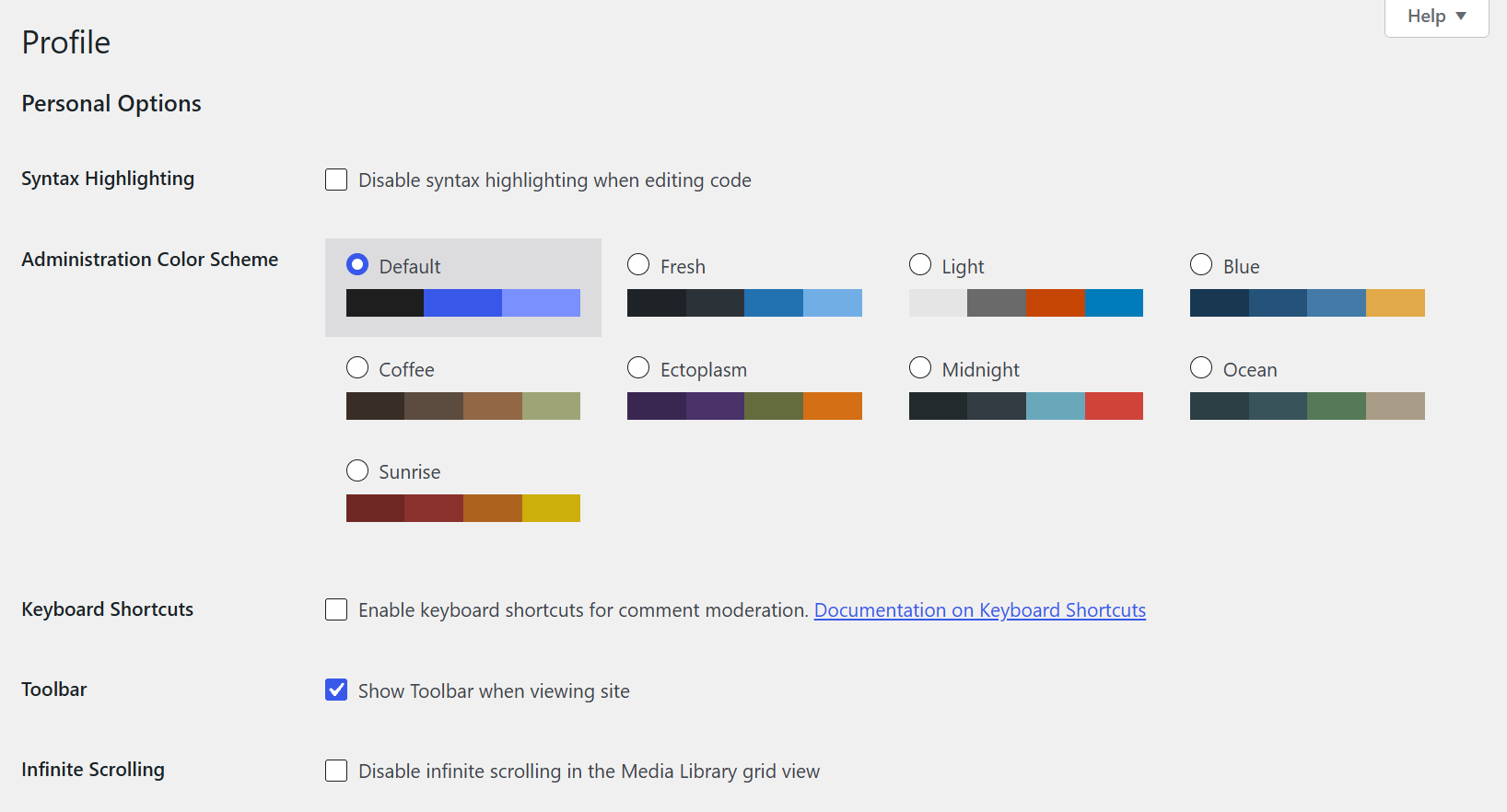
This only changes how the WordPress admin area looks when you’re logged in. It doesn’t affect the appearance of your website to visitors.
Customize Your Block Editor View
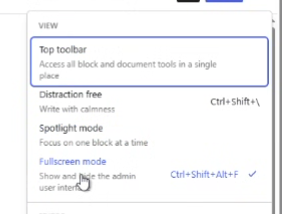
You can also change the way the WordPress Block Editor looks while you’re working on a page or post.
Open the Options menu, represented by the three vertical dots in the upper-right corner of the editor. Under View, you’ll find several ways to customize your workspace:
- Fullscreen mode: This is the default Block Editor view. It gives the editor more room by hiding much of the surrounding WordPress admin interface.
- Distraction free: Need to focus on writing? Distraction Free mode hides many of the editor’s interface elements, including open sidebars and block controls. Move your cursor toward the top of the editor when you need to access the toolbar again.
- Top toolbar: Instead of displaying a toolbar directly above the block you’re editing, this option keeps your block tools at the top of the editor.
- Spotlight mode: This dims the blocks you aren’t currently editing, making it easier to focus on one block at a time.
These options aren’t mutually exclusive. For example, you can use Spotlight mode or Distraction Free mode while working in Fullscreen mode.
You don’t have to use the WordPress admin area exactly as it appears by default. Taking a few minutes to adjust your color scheme, Screen Options and editor view can create a cleaner workspace that better fits the way you manage your website.