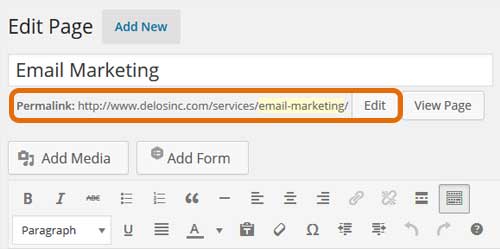
Once you have titled your post or page in WordPress, that title becomes part of the URL. WordPress calls this the Permalink. The Permalink is the post’s web address. Sometimes the Post title will be ok to use as part of the URL, but there are times you may want to change the Permalink to establish a more search friendly URL.
Each page in your site must have a unique URL. WordPress will automatically create one for you, but you should look at it with these tips in mind, and change it if necessary:
- Research has shown that shorter URLs have a higher click through rate than longer ones. Try to keep length of URL to less than 100 characters. (Shorter page titles are generally better too!)
- Use the keywords from your page in the page URL.
- Don’t include STOP words in your URL. These are words that are filtered from search like a, the, is, for, every, our, one and you.
- Use the dash or hyphen as a word separator
To change the Permalink in WordPress, follow the steps below:
- First make sure you’ve typed the name of your post
- Once you have a title you will notice the Permalink displayed under the title block
- Click Edit to edit that portion of the URL
- Click Ok
- The URL now contains your edits leaving the original title of the page the same. (If you later change the title, the permalink does not change)
Note: Be careful about changing the permalink for a published page or post however. This can cause a drop in search engine rankings as the original page URL is now missing and any existing links to it will create a not found error.
Before You Change a Published URL
It’s best to think about your page URL before you publish the page. Once a page or post is live, that URL may already be saved, shared, linked from another page, or showing up in Google.
If you change the permalink later, the old URL may no longer work. That means someone who clicks the old link could end up on a “page not found” error instead of the page they were looking for.
When a published URL really does need to change, the old URL should be redirected to the new one.
For example:
Old URL:
yourwebsite.com/services
New URL:
yourwebsite.com/wordpress-website-services
A redirect tells the browser, “This page has moved. Go here instead.” A 301 redirect is used when the move is permanent. It helps visitors get to the right page and also helps search engines understand that the page has moved.
WordPress may handle some simple URL changes, but it does not have a clear built-in way to manage redirects. A redirect plugin, such as Safe Redirect Manager, can be used to create and manage redirects when needed.
The main thing to remember: it’s fine to clean up a URL before publishing. But if the page is already live, don’t just rename the permalink without checking whether a redirect is needed.
Updated May 9, 2026